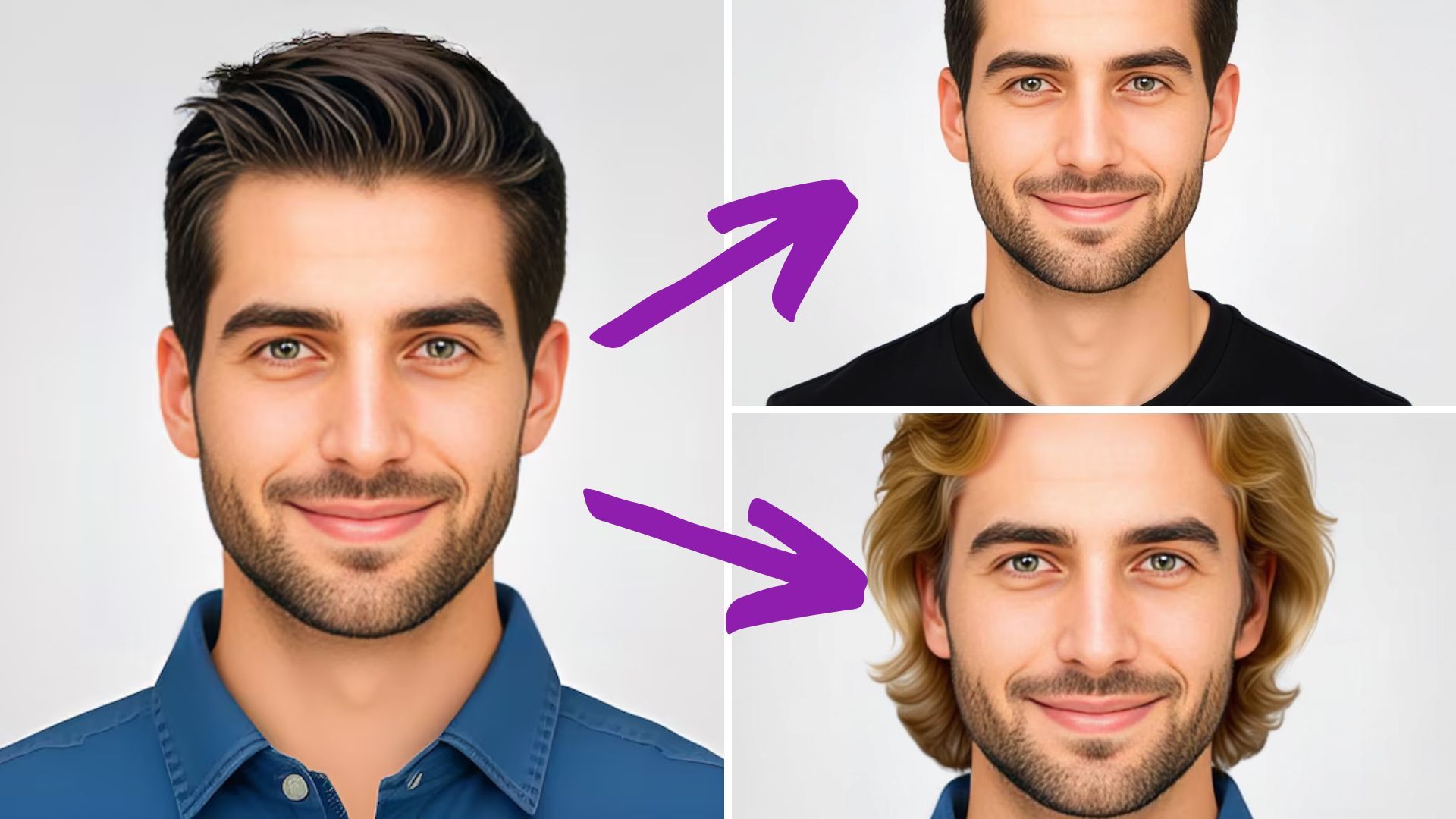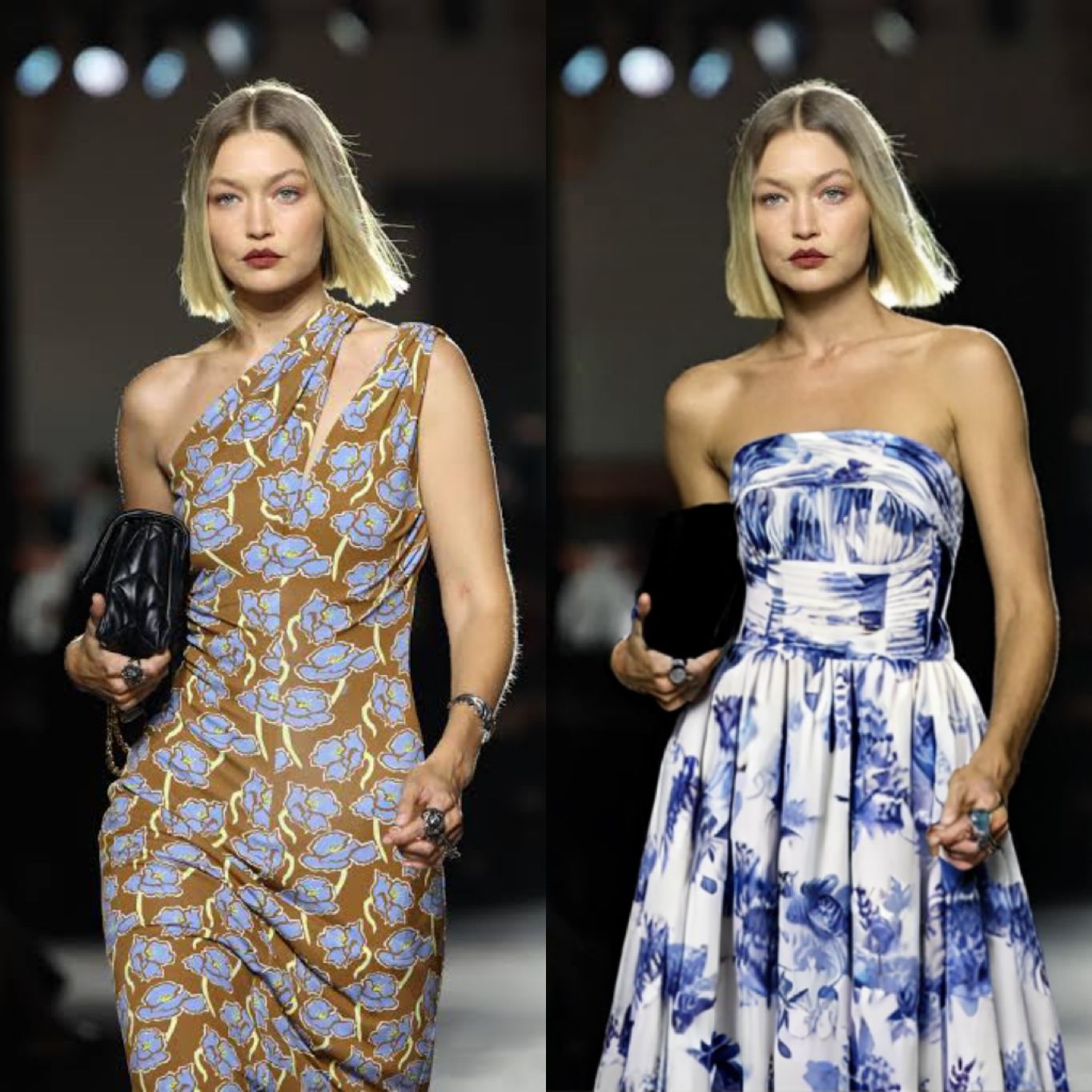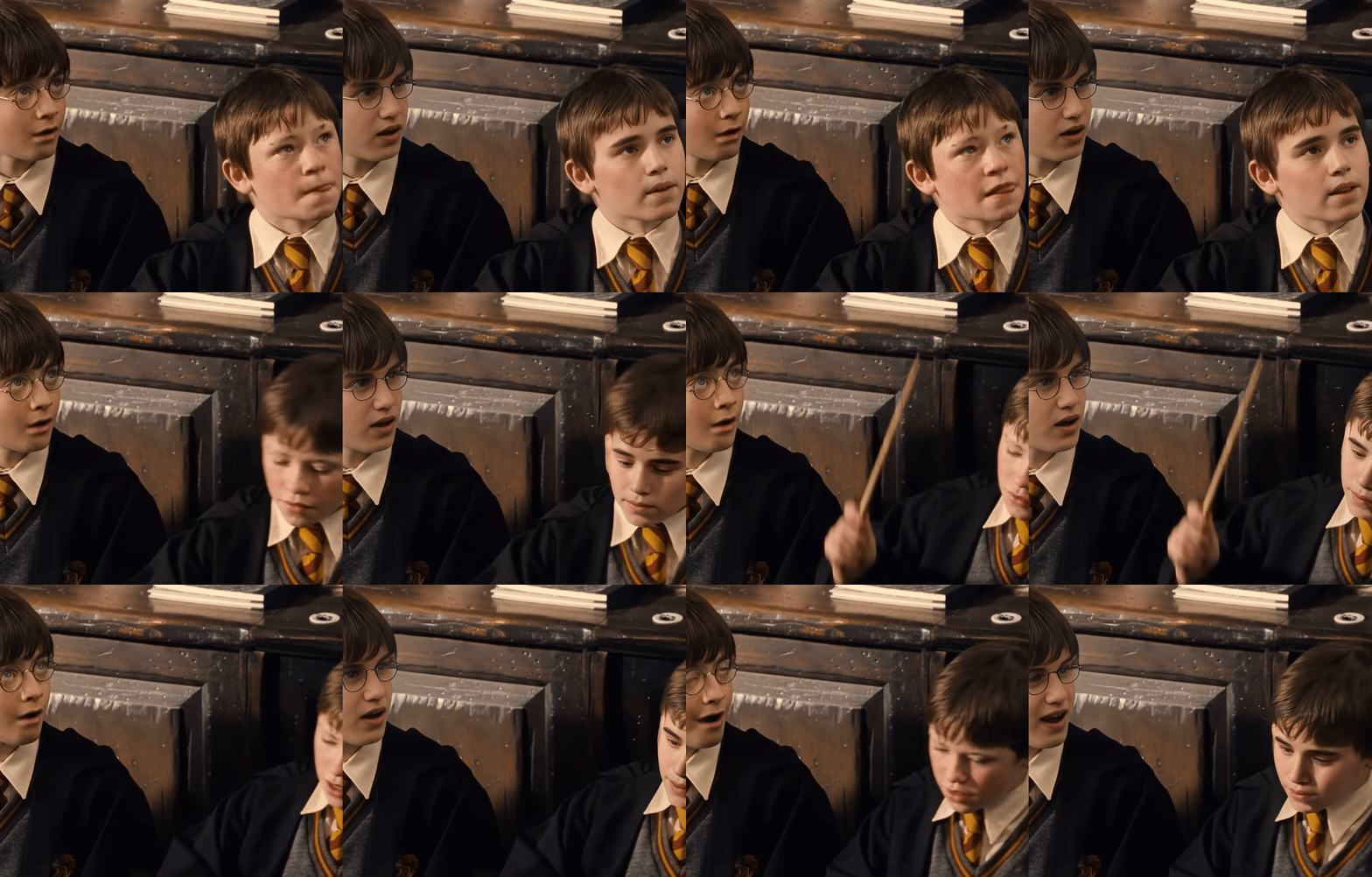
In this blog, we’ll show you how to use the SwapFace AI Image to Video tool, and why it’s going to impress you. You don’t need any editing experience or fancy equipment. With just a few clicks, you can turn a still image into a lifelike video, all while earning free daily credits for every login.
How Does AI Image to Video Tool Work, and How to Get Free Daily Credits?
AI Image to Video Tool
The SwapFace AI Image to Video tool analyzes the key features of the character from your uploaded image, then generates a realistic video that follows your prompt, all while maintaining the character’s unique appearance and expressions.
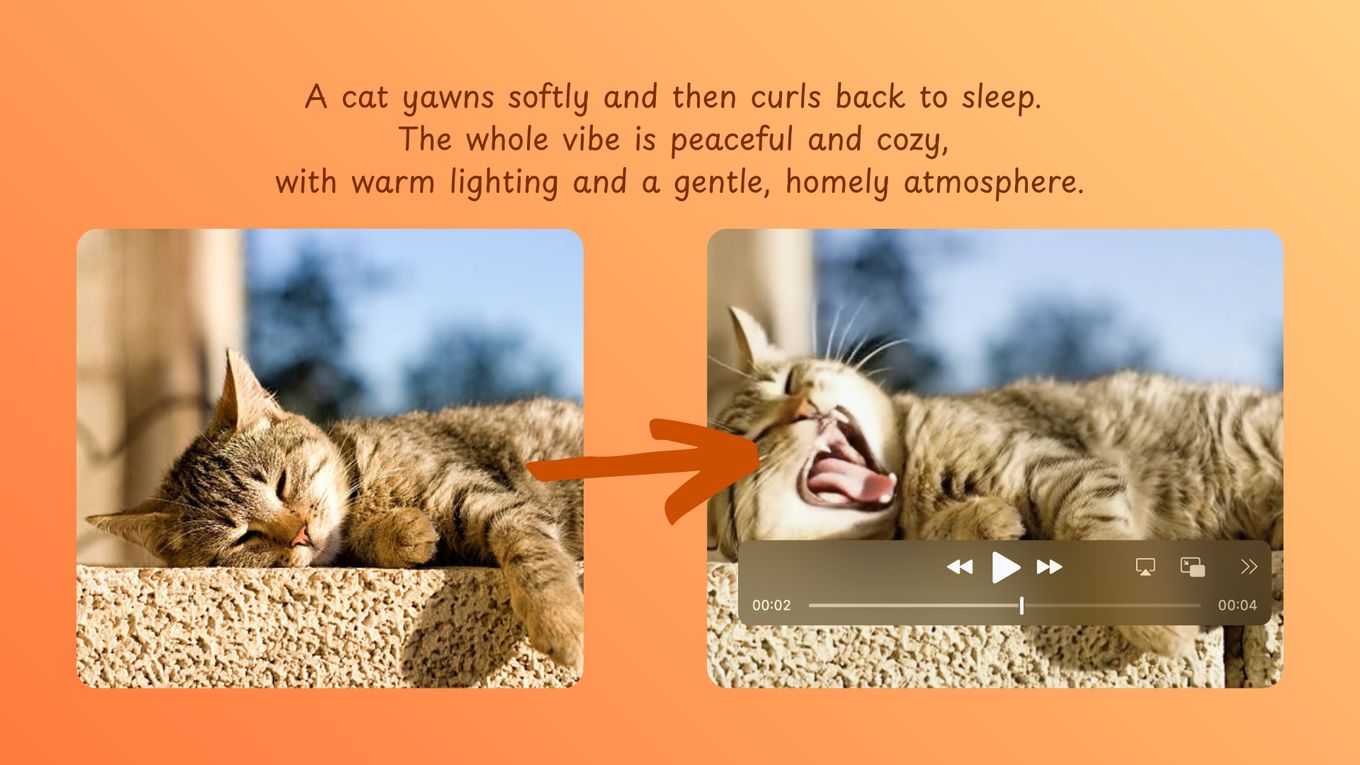
Free Daily Credits
Every user receives free daily credits just by logging in. You can also earn special rewards for 7 days of continuous logging in, giving you more chances to explore and create without limits.
How to Use SwapFace AI Image to Video Tool?
Upload an Image
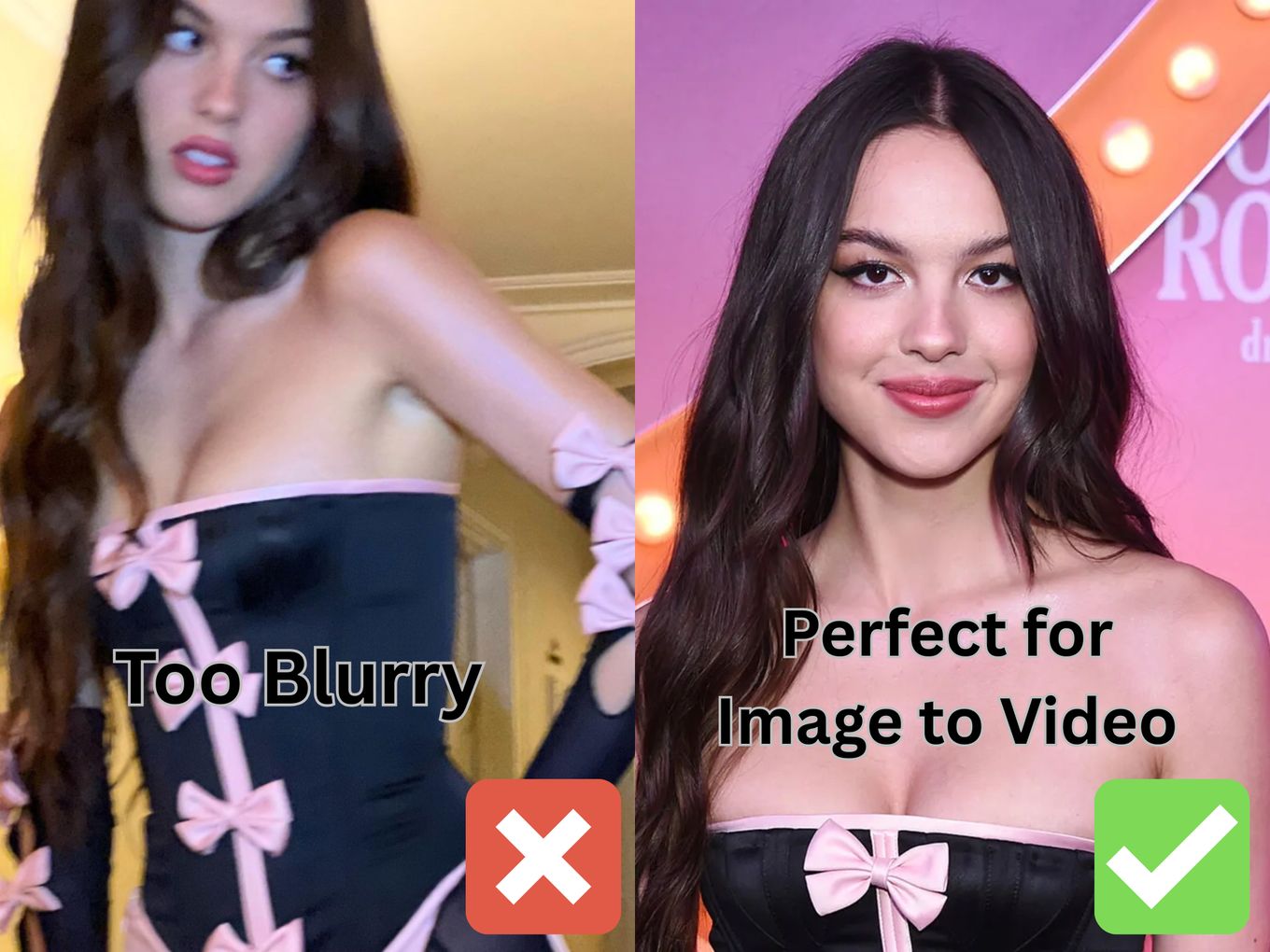
Upload a clear image that shows the full appearance of the character. This ensures that the AI can accurately capture and maintain the key features of the character throughout the animation.
Write Effective Image to Video Prompt
Specify Your Style
Describe the overall vibe and atmosphere you want in your video. (e.g., emotional, moody, joyful)
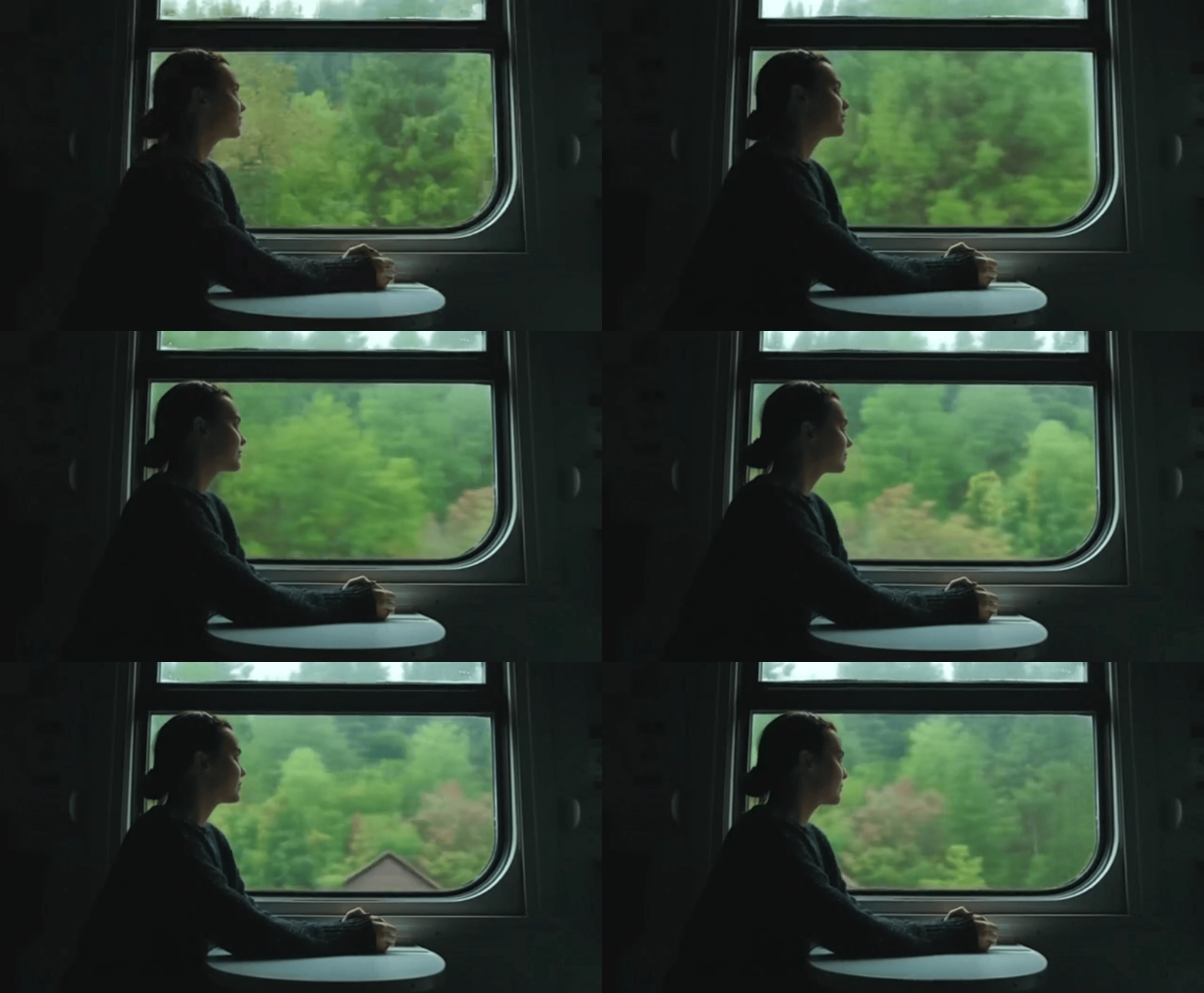
Example: Animate the image to show the scenery outside the window moving as the train passes by. Keep the lighting soft and dim, with reflections on the glass. The overall tone should be moody and emotional, evoking a sense of solitude and introspection.
Describe Action and Expression in Detail and Sequence
To ensure your video develops as expected, describe the actions and changes in expression step by step. This helps the AI produce natural, logical movements and emotions.
Example: Animate the input image. This scene takes place right after the guy confessed his feelings to the girl. The guy gently leans closer and kisses the girl. The girl looks surprised at first, then softens and closes her eyes, feeling the sweetness of the moment. The overall vibe should be tender, emotional, and deeply romantic.

Specify Camera Movement
Describe how you want the camera to move in the video. (e.g., zoom-in, zoom-out, close-up)
Example: Animate the input image. Begin with a slow dolly zoom focusing on the girl’s face over 3 seconds. Her expression gradually shifts from calm to visibly hurt and sad, capturing a deep sense of emotional pain. After 3 seconds, she slowly turns and walks away. Keep the shot continuous with no overlay or transition effects, the zoom should be steady and uninterrupted. The overall vibe should feel cinematic, melancholic, and expressive.
Define Effects
Describe what effects you want in your video. (e.g., ambient light, glowing body, breeze effect)
Example: Animate the input image into a seasonal transition scene. A strong gust of wind blows through as snow begins to fall. Winter arrives, the trees and mountains gradually turn white, snow piles up on the ground, and the lake freezes over.
Use Descriptive Language
Use descriptive language instead of vague, so AI can understand your prompt better.
Example: The woman gently takes a sip of her drink, then smiles enchantingly at the camera, holding the glass playfully in her hand.

Add a Background Story (Optional)
To add more depth to this video, you can additionally mention the background story, so the AI can understand the feeling of the character, the vibe more comprehensively
Example: Animate the input image. The girl’s eyes fill with tears as she watches a heartbreaking scene on the TV. She slowly begins to cry, her expression full of sympathy and sorrow for the victims shown on screen.

Fix Your Prompt if the Result isn't Satisfying
If something looks off in the result, identify what’s missing (e.g., mood, action, or effect) and refine your prompt. Often, small wording changes can make a big difference in the final video.
Before refinement: Animate the input image into "leopard hunting" scene.
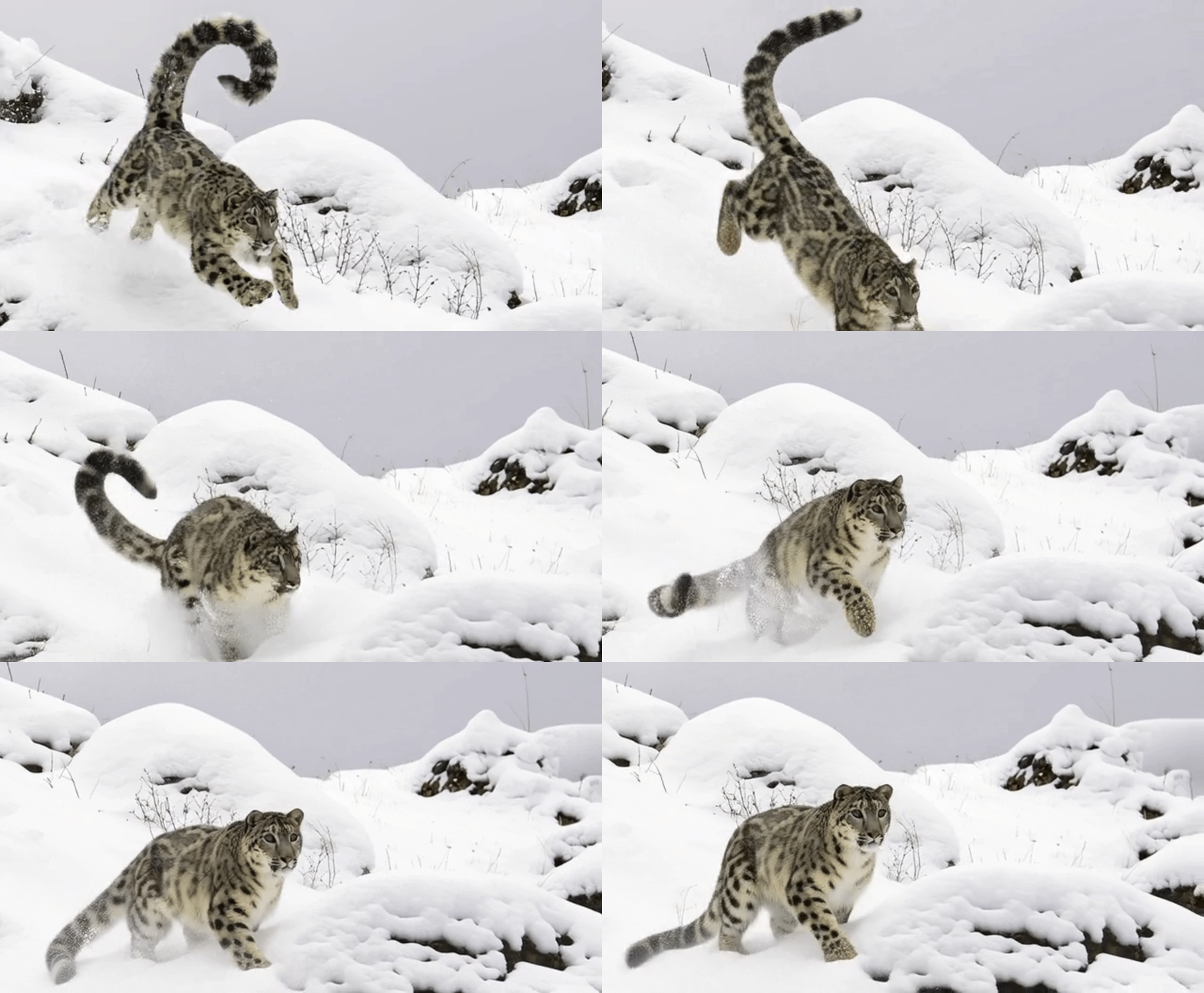
After refinement: Animate the input image. The leopard runs swiftly through the snowy landscape, leaving trails of snow behind as it moves with power and grace.
Advantages of Using SwapFace AI Image-to-Video Tool with Free Daily Credits
Instant Results
No more endless waiting! With SwapFace AI, your results are generated within seconds. Get professional-quality video transformations faster than ever.
Ultra-Realistic Effects
Powered by cutting-edge AI algorithms, our tool delivers stunningly lifelike effects while maintaining perfect image consistency. Every frame feels natural, every expression genuine.
No Watermark
Your creativity deserves full credit. That’s why all processed results come watermark-free . You own 100% of your downloaded videos.
No Signup Required
Jump straight into creation. You can test out our AI image-to-video tool instantly, without the hassle of registration.
Strict Data Encryption
Your privacy is our priority. From registration to payment, all data is encrypted and never stored. Every file you upload is automatically deleted within 24 hours.
Conclusion
Now that you know how to use our tool, it’s time to unleash your creativity with SwapFace Image to Video Tool with free daily credits. Turn your static images into lifelike videos — fast, secure, and effortlessly realistic.
FAQs
How to get free daily credits?
Check your credit records and click "Reward Tasks", then you'll receive your daily login reward instantly.
Is SwapFace image-to-video tool free to use?
Yes! You can enjoy all our tools using free credits.
What if the clarity of the image-to-video results isn't satisfying?
You can upload your video to our AI Video Enhancer. It will automatically improve the sharpness and overall visual quality of your results.
How long can I get image-to-video results?
Most results are processed within seconds. It may take slightly longer if your video is longer or when there’s high user traffic.
How good is the image-to-video results?
The results are highly realistic and visually stunning. You can check out the GIFs in this blog. Every animated scene was generated using the SwapFace Image-to-Video tool.
Is my data safe while using image-to-video tool?
Absolutely! Your personal data is fully protected, even our staff cannot access it. All data is automatically deleted within 24 hours for your privacy, so be sure to download your results before refresh the page.